Program Settings
Changes to a Program’s settings should occur prior to curriculum mapping and before any assessments begin.
Program Developmental Levels
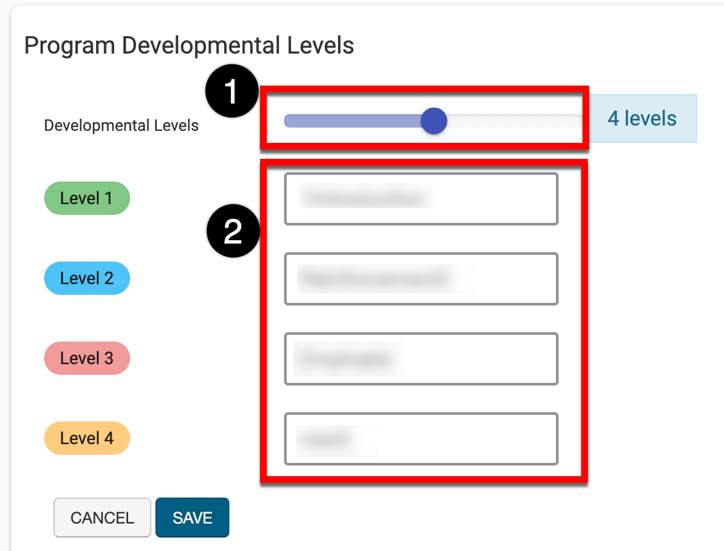
Program Developmental Levels dictate what level of detail an outcome is taught throughout a course; and, they offer more granular reporting capabilities when utilizing the platform’s Report Library. Default values can be locked and are then inherited downstream through the organizational hierarchy. If Program Development Levels have not been locked, the numbers of levels (1) and their titles (2) can be edited.
Proficiency Scale
The Proficiency Scale measures levels of skill or knowledge using criteria organized into levels. These levels indicate increasing proficiency or competency. When collecting assessment data, the platform will review Student scores and assign a level based on the scores, to indicate success or failure.
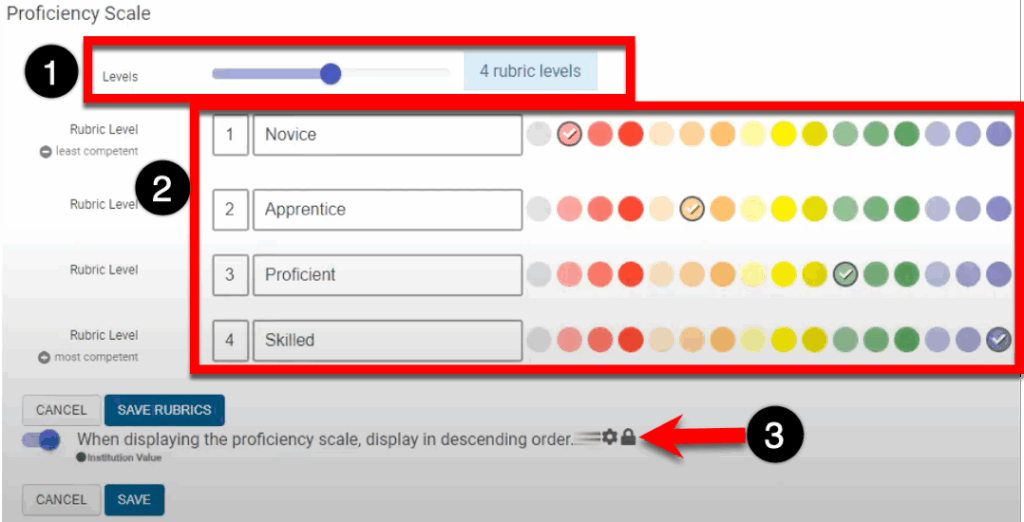
The amount of levels on the scale can be increased or decreased (1) and the numeric value, description, and color of each level (2) can be edited. When displayed on reports, proficiency scale levels are automatically displayed in ascending order; when the When Displaying the Proficiency Scale, Display in Descending Order (3) is enabled, proficiency scale levels will display is descending order.
Once the program has been published, the Proficiency Scale cannot be altered. Should any corrections to the Proficiency Scale be necessary following an assessment, the program must be archived, and a new program should be created to accurately reflect the updated Proficiency Scale. If no assessment has been enabled for a published program, the program can be unpublished via the Program Homepage. Once unpublished, all PLOs will need to be deleted before changing the proficiency scale.
Performance Goal
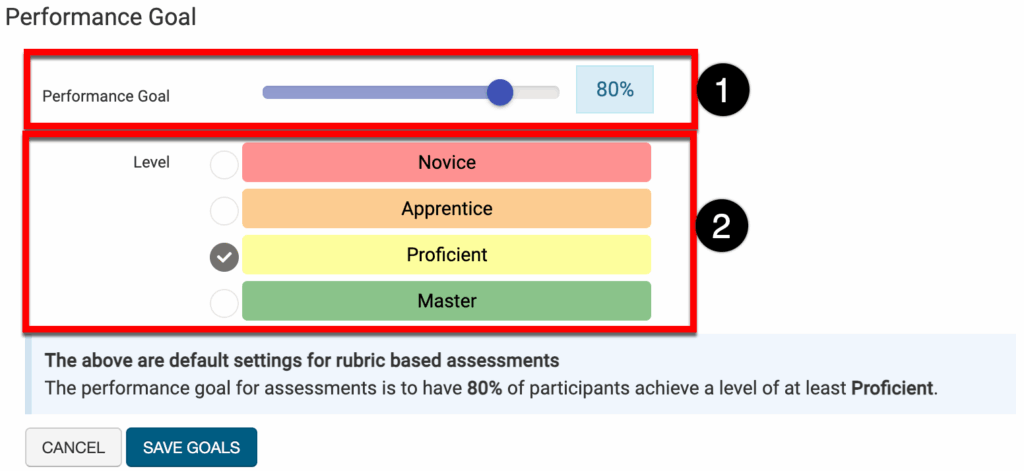
These settings define a default goal based on the program’s Proficiency Scale configuration; this goal is the target Students will be expected to achieve for program success. The performance goal can be set (1) and then a rubric level chosen (2). In the screenshot below, 80% of students will need to achieve the rubric level of Proficient for the program to be considered a success.
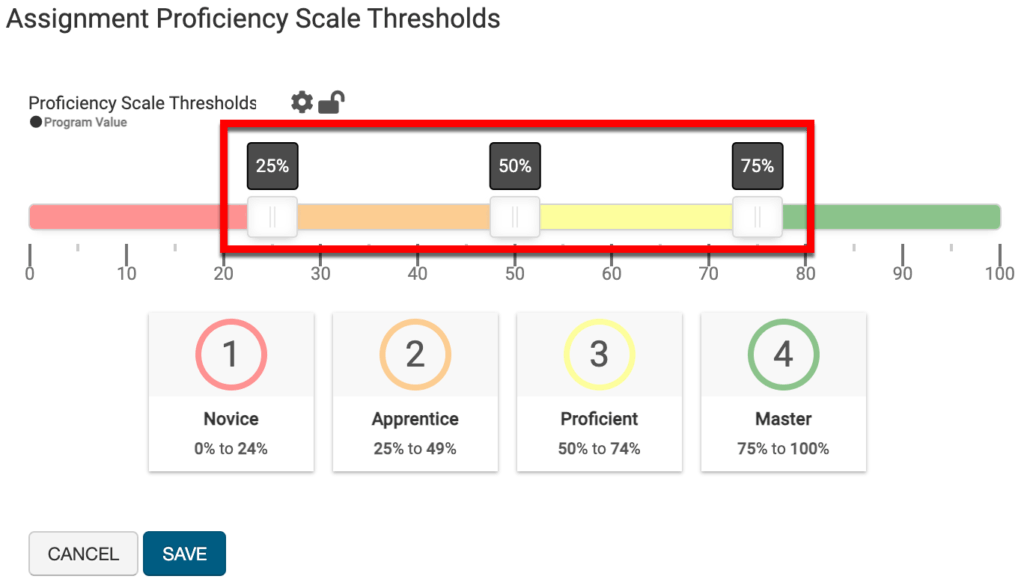
Assignment Proficiency Scale Threshold Default Settings
This setting defines what assignment score directly relates to each level of the Proficiency Scale. Adjusting the sliders (1) defines the default range of scores for each level of the Proficiency Scale. Unless the proficiency scale threshold defaults are locked at any level of the Organizational Hierarchy, these settings will also be configurable at the course or course section level.
Program Assessment Settings
This setting allows for Course Level Outcome (CLO) Assessment to occur even if a course is mapped to a program during the curriculum mapping process; this setting is disabled by default.
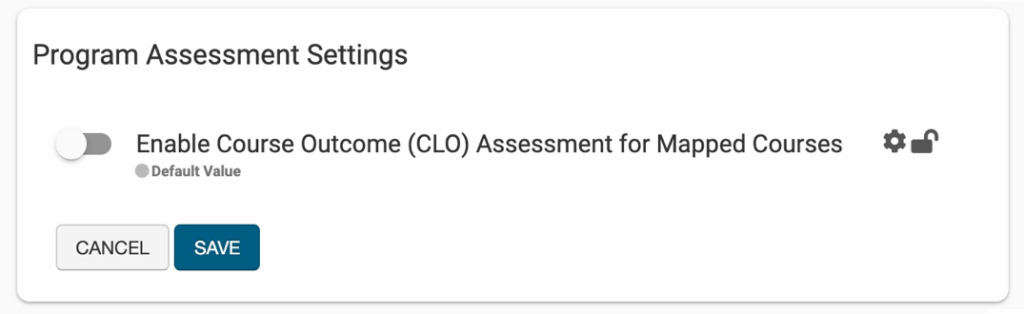
When enabled, any CLO that is not mapped to Program Learning Outcomes (PLOs) will collect data via Course Assessment. For any CLOs that are mapped to PLOs, they will collect data via Program Assessment. When disabled, the mapped course will only collect data via the Program Assessment they are associated with; even if a course has CLOs not mapped to PLOs, no CLO will be available for Course Assessment.
If no curriculum map exists for a course, this setting is irrelevant, and CLOs will collect data via Course Assessments. If PLOs are mapped to a whole course rather than to CLOs, this setting should be enabled to allow CLOS to be used in assignment linking for course assessments.
Assignment Settings
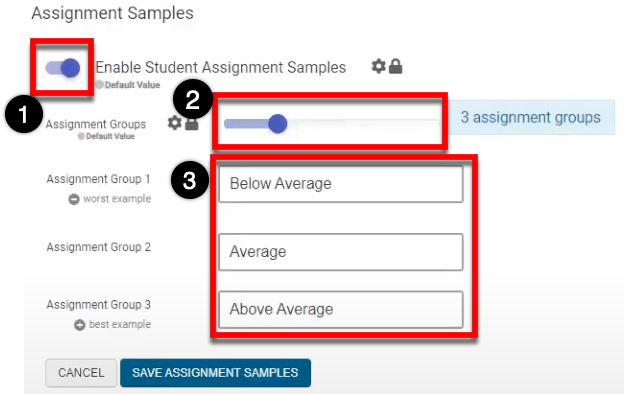
When enabled (1), the Course Section Assignment Samples page will allow for the upload of assignment examples. By default, three assignment sample groups (2) are available and additional groups can be added as needed. Default titling for the default three assignment groups define levels of Below Average, Average, and Above Average and can be edited (3).