

Assignment Linking Manager
The Assignment Linking Manager allows administrative users to create links between course section assignments and outcomes in a central location. The Assignment Linking Managercan be accessed by navigating Main Menu > Assessment > Assignment Linking Manager.
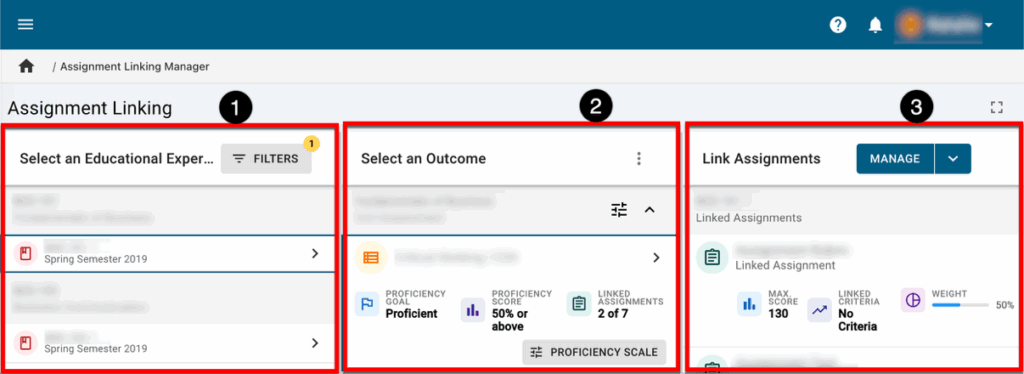
- The Select an Educational Experience column lets users choose the course section with which they want to begin the assignment linking process. Once filters have been applied, no more than 15 courses will display by default; if more than 15 courses are available, the Load More Courses button at the bottom of the column can be clicked.
- The Select an Outcome column displays the outcomes mapped to the chosen educational experience.
- The Link Assignments column allows users to review, add, or remove assignments linked to the outcome of the selected educational experience.
Create an Assignment Link
For Administrators:
For Faculty:
- To create an assignment link using the Assignment Linking Manager, navigate to Main Menu > Assessment > Assignment Linking Manager.
- Select an educational experience from the list in the Select an Educational Experience column or click the Filter button to narrow the educational experiences available.
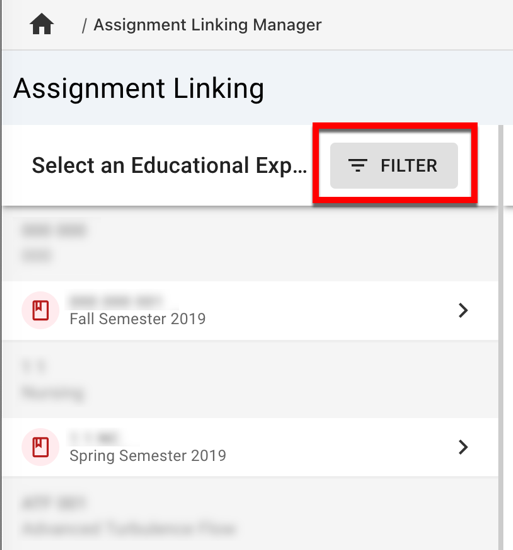
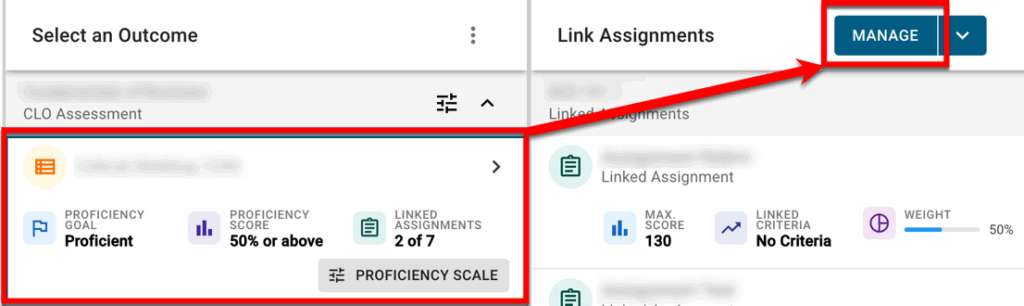
- Once an educational experience is selected, the Outcomes column will populate with the outcomes mapped.
- Select an outcome to either link available assignments or review previously linked assignments. Click Manage to select available assignments.
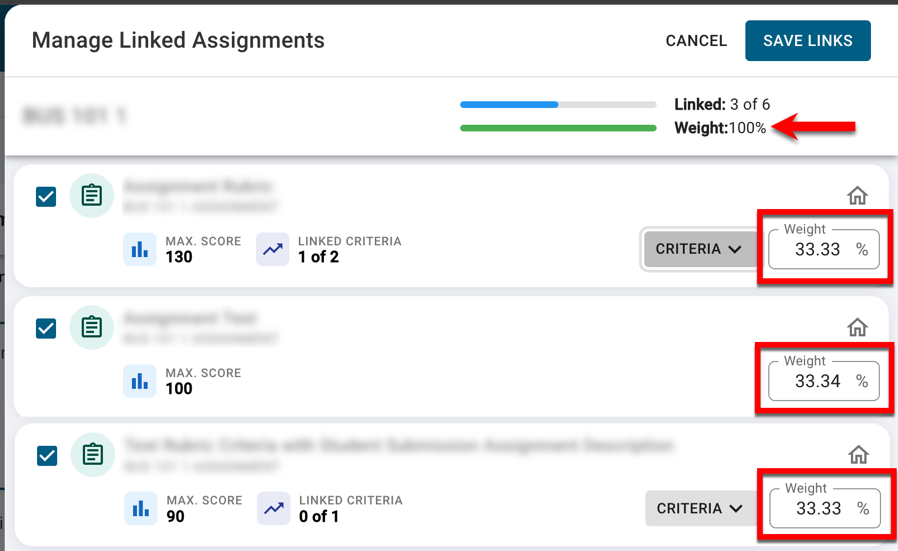
- Based on the selected outcome, a list of all available assignments will populate in the Manage Linked Assignments drawer. Check the box next to assignments that should be linked to the selected outcome.
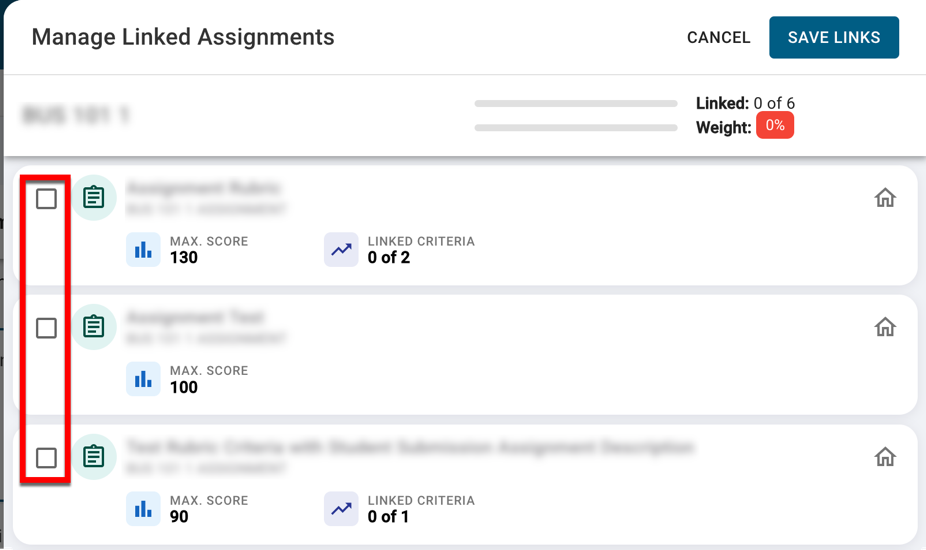
- The individual weight allocated to each assignment will be automatically calculated although assignment weights can be distributed manually as needed. If the total weight of all selected assignments does not equal 100%, the Save Links button will be unavailable until the total weight is equal to 100%.
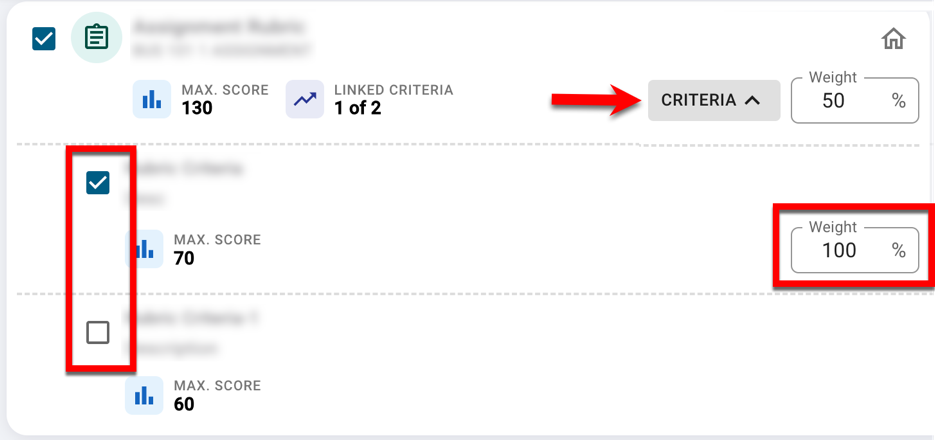
- If an assignment contains rubric criteria or quiz questions, clicking Criteria^ will display associated rubric criteria or quiz questions available for linking to the outcome. Once criteria/quiz questions have been selected, individual weights allocated to each criteria will be automatically calculated, although criteria weights can be distributed manually as needed.
- To complete assignment linking, click Save Links to link the assignment(s) and/or rubric criteria/quiz questions to the selected outcome.